
trids
-
Posts
936 -
Joined
-
Last visited
Recent Profile Visitors
717 profile views




trids's Achievements

Universalist (7/7)
2
Reputation
-
 trids changed their profile photo
 -
 Luigi reacted to a post in a topic:
Run multiple DOS commands in one line
Luigi reacted to a post in a topic:
Run multiple DOS commands in one line
-
If you're going to ditch support for older operating systems, please keep a download link active for the last release that does support them. Even if you have to label it as "no longer supported". Now that win2K is the lowest common denominator, it is next in line for the chop. But my clients all still run win2K, and are unlikely to budge to XP or Vista. In fact one is considering Linux, but that's another story. So even though M$ is throwing out the "bathwater", please keep the babies safe for those who can't afford to keep up with the revenue demands of M$. TIA
-
Awesome! And inspiring as always
-
Very nice - thank you!
-
Great! Thanks, lots, it's nice to have the whole picture
-
I just stumbled across this sublime technique of concatenating DOS commands with &&, in order to run them on the same line. EXAMPLE -- Does all of this in ONE execution of RunWait().. set current drive to C:change path to WINNT foldercollect the list of files there into a temporary fileopen the file in your text editor RunWait( @COMSPEC & " /c C:&&cd \winnt&&dir>D:\temp\multi.txt&&D:\temp\multi.txt", "", @SW_SHOW )
-
Au3GlPlugin T2 - OpenGl Plugin Evolution
trids replied to A. Percy's topic in AutoIt Example Scripts
Meantime .. here is a basic "Un-Embedded GUI" .. tandem_GUI.au3 -
Very clever .. I like it!
-
Au3GlPlugin T2 - OpenGl Plugin Evolution
trids replied to A. Percy's topic in AutoIt Example Scripts
@ A.Percy .. I'm having great fun with this! Just a quick request if I may. I'd like to manipulate multiple windows from one script: (just think - animated 3D stereographic scenes for the first time!). Any chance you could make DefineGlWindow() return an object ID to make this possible, please? I guess we'd need a further method too -- ActivateGLWindow($WindowID) -- in order to direct subsequent GL commands to the appropriate window. Or is something like this possible already and i've just missed it?? -
Au3GlPlugin T2 - OpenGl Plugin Evolution
trids replied to A. Percy's topic in AutoIt Example Scripts
Very good! And thanks for the CHM file too - nice touch! Only I can't seem to get it to work in the way that the AutoIt CHM links directly to the help topic that corresponds with a highlighted word/function. I'm not too clued up with CHM file compilation, but maybe you can find out the missing piece from JdeB or Jon (whoever compiles the AutoIt CHM)? Thanks again for the plugin and for really Opening up GL for us! -
Au3GlPlugin T2 - OpenGl Plugin Evolution
trids replied to A. Percy's topic in AutoIt Example Scripts
Sounds interesting! But after unzipping the plugin, I tried to run FirstScene.au3: Got an error that DefineGlWindow() is an unknown function. Running through the console yielded the same results, so I compiled it and ran the EXE. New error says it can't find GLAUX.DLL -
Be my guest - I'm looking forward to seeing how the idea progresses And for those who are looking for the A3LListView.au3 dependency, here is PaulIA's thread for his Auto3Lib UDFs. Hopefully one day this will be absorbed into AU3 as intrinsic functions.
-
Thanks for the feedback, MsCreatoR. The paradigm is to save and restore your layouts .. so if you create new icons after having saved a map, then position them where you want them and update your map by rightclicking and selecting Save IconMap layout This will register the new icons and their positions in your selected map. HTH
-
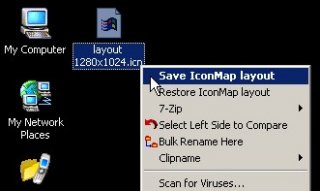
Thanks to PaulIA's ListView UDFs, which you can get here, we can do some cool things ... INTRODUCTION IconMap saves and restores the desktop icon layout using ini-format *.ICN files. Using IconMap you can update your desktop icon mappings at any time, or restore any saved layout at any time. Or you can create as many mappings as you like, such as for different screen resolutions, or different users. You can even copy your desktop layout from one machine to another. OPERATION Compile and copy IconMap.EXE to "C:\Program Files\IconMaps\IconMap.exe" .. or change the code for the "/INSTALL" switch below to reflect your chosen path.Run the EXE with no commandline parameters to activate an option that installs shell context menu options for when *.ICN files are rightclicked in Windows File Explorer.In any folder (even directly on the desktop itself), create a "New Text Document" with with a right-click option, and give it a meaningful name with an *.ICN extension. For example: "1280 x 1024 (trids).icn" or "my_mappings.icn", etc.When you right-click the *.ICN file, and select the option Save IconMap layout, the positions of the icons on the desktop are recorded into that *.ICN file.Select the right-click option Restore IconMap layout to re-arrange the icons according to previously saved mapping coordinates in the *.ICN file.Enjoy Edit: added a link to PaulIA's Auto3Lib for the A3LListView.AU3 dependency IconMap.au3
-
There's a FREE utility that comes in handy with OCR .. a command line screen scraper called minicap. Here's an example that combines minicap with ptrex's OCR. Enjoy!
-
Have you ever wanted to capture a portion of the screen with AU3, maybe just a window? Well here's a handy little utility that does it via the commandline .. minicap. And it's FREE! Very neat, many options to meet your custom needs: download here. But wait! There's more .. here is an example of how to use it. Plus for free it does an OCR of the screen capture, using ptrex's recent discovery! Before you run the script below, startup an instance of Notepad and type in some text that you want to be OCR-ed. Experiment with different fonts and font sizes. ; ; ; minicap_au3.exe .. automation of minicap.exe (screen capture commandline utility) ; -> http://www.softpedia.com/get/Multimedia/Graphic/Graphic-Capture/MiniCap.shtml ; Global $oMyError = ObjEvent("AutoIt.Error","_OCRErrFunc") ;Dependencies FileInstall( "D:\_#WWW\MiniCap - 1.08.02\MiniCap\MiniCap.exe", @SYSTEMDIR & "\" ) ;Wait for the window so that we capture it $sTargetImage = "D:\My OCR\OCR_tgt.gif" $sTargetTitle = "Untitled - Notepad" WinWaitActive( $sTargetTitle ) #cs -------------------------------------------------------------------------------- ;Capture the target by PID $nPID = WinGetProcess( $sTargetTitle ) $sSwitches = ' -save "' & $sTargetImage & '"' $sSwitches &= ' -capturepid ' & $nPID $sSwitches &= ' -exit' RunWait( @COMSPEC & ' /c minicap.exe ' & $sSwitches, "", @SW_HIDE) -------------------------------------------------------------------------------- #ce ;Capture the target by position $aPos = WinGetPos( $sTargetTitle ) $sSwitches = ' -save "' & $sTargetImage & '"' $sSwitches &= ' -captureregion ' & $aPos[0] & ' ' & $aPos[1] & ' ' & $aPos[2] + $aPos[0] -1 & ' ' & $aPos[3] + $aPos[1] -1 $sSwitches &= ' -exit' RunWait( @COMSPEC & ' /c minicap.exe ' & $sSwitches, "", @SW_HIDE) ;Now lets do something with the saved image .. ;.. like OCR it and see what it says $sTargetText = _OCRGetText( $sTargetImage ) ;Display the results Msgbox( 0, @SCRIPTNAME, "Results of OCR:" & @LF & $sTargetText ) Func _OCRGetText( $Image ) Local $oDoc = ObjCreate("MODI.Document") $oDoc.Create($Image) If @ERROR Then Return SetError(1) $oDoc.Ocr(9, True, False) ;ENGLISH = 9 If @ERROR Then Return SetError(2) Return $oDoc.Images(0).Layout.Text $oDoc = 0 EndFunc Func _OCRErrFunc() $HexNumber = hex($oMyError.number, 8) Msgbox(0, @SCRIPTNAME,"We intercepted a COM Error !" & @CRLF & @CRLF & _ "err.description is: " & @TAB & $oMyError.description & @CRLF & _ "err.windescription:" & @TAB & $oMyError.windescription & @CRLF & _ "err.number is: " & @TAB & $HexNumber & @CRLF & _ "err.lastdllerror is: " & @TAB & $oMyError.lastdllerror & @CRLF & _ "err.scriptline is: " & @TAB & $oMyError.scriptline & @CRLF & _ "err.source is: " & @TAB & $oMyError.source & @CRLF & _ "err.helpfile is: " & @TAB & $oMyError.helpfile & @CRLF & _ "err.helpcontext is: " & @TAB & $oMyError.helpcontext) SetError(1) ; to check for after this function returns Endfunc Have fun!