
JerryD
-
Posts
248 -
Joined
-
Last visited
JerryD's Achievements

Polymath (5/7)
1
Reputation
-
 krasnoshtan reacted to a post in a topic:
If folder exists...
krasnoshtan reacted to a post in a topic:
If folder exists...
-
-
Anyone else have a suggestion that's actually helpful?
-
Where I work we are nearly fully imbeded in 64 Bit Windows - but not completely. If I compile a script, I'd like to run the 32 bit version, but invoke the 64 bit version if the appropriate OS is running. So far this is a sample of what I've come up with. #RequireAdmin #Region ;**** Directives created by AutoIt3Wrapper_GUI **** #AutoIt3Wrapper_Compile_Both=y #AutoIt3Wrapper_UseX64=y #AutoIt3Wrapper_Res_Fileversion=1.4.0.0 #AutoIt3Wrapper_Res_requestedExecutionLevel=requireAdministrator #AutoIt3Wrapper_Run_After=copy /Y "%outx64%" "C:\Temp\*.*" #EndRegion ;**** Directives created by AutoIt3Wrapper_GUI **** #include <WinAPIFiles.au3> #Region 64 Bit Switch If @Compiled AND StringInStr(@ScriptName,'_x64')=0 AND @OSArch='X64' Then FileInstall ( 'C:\Temp\64BitTest_X64.exe', @TempDir & '\64BitTest_X64.exe', 1 ) Run ( @TempDir & '\64BitTest_X64.exe' ) Exit EndIf #EndRegion 64 Bit OnAutoItExitRegister ( 'MyExit' ) MsgBox ( 0, '@ScriptFullPath - Version', @ScriptFullPath & @CRLF & 'Version: ' & FileGetVersion ( @ScriptFullPath) ) #Region Functions Func MyExit() If @Compiled AND StringInStr(@ScriptName,'_x64') Then _WinAPI_MoveFileEx ( @ScriptFullPath, Null, $MOVE_FILE_DELAY_UNTIL_REBOOT ) EndIf Exit EndFunc #EndRegion Functions This works fine but there are a couple of minor problems with it - specfically that you have to compile the script twice to get the current version of the script in the 32 bit version via FileInstall. I'm also not crazy about leaving the 64 bit version in the Temp directory until the next reboot, but it doesn't bother me as much as the needing to compile twice. Does anyone hae a more graceful way to do this that doesn't require compiling the script twice? Thanks!
-
Thanks! Feel silly!!
-
My understanding of the Using the _WinAPI_MoveFileEx with the $iFlags option set to $MOVE_FILE_DELAY_UNTIL_REBOOT, a file (full path name) should be able to be specified as the $sExistingFile option, and 0 specified as the $sNewFile option, and the file will be deleted on the next reboot. I've tried the following code: #Region ;**** Directives created by AutoIt3Wrapper_GUI **** #AutoIt3Wrapper_Res_Fileversion=1.0.0.2 #AutoIt3Wrapper_Run_After=copy /Y "%out%" "C:\Temp\*.*" #EndRegion ;**** Directives created by AutoIt3Wrapper_GUI **** #include <WinAPIFiles.au3> MsgBox ( 0, '@ScriptFullPath - Version', @ScriptFullPath & @CRLF & 'Version: ' & FileGetVersion ( @ScriptFullPath) ) Local $Ret = _WinAPI_MoveFileEx ( 'C:\Temp\MovFileExTest.exe', 0, $MOVE_FILE_DELAY_UNTIL_REBOOT ) MsgBox(262144, 'Debug line ~' & @ScriptLineNumber, 'Selection:' & @CRLF & '$Ret' & @CRLF & @CRLF & 'Return:' & @CRLF & $Ret & @CRLF & @CRLF & '@error:' & @CRLF & @error & @CRLF & @CRLF & '@extended:' & @CRLF & @extended & ' (0x' & Hex(@extended) & ')') ;### Debug MSGBOX The function returns all 0's, but no entry is made in the registry (HKEY_LOCAL_MACHINESYSTEMCurrentControlSetControlSession ManagerPendingFileRenameOperations) [see MS MoveFileEx function], and of course the file isn't deleted after a reboot. I want to be able to delete a file or directory on the next reboot. I'm using AutoIt 3.3.10.2. Any assistance would be appreciated.
-
Yes, I'm using that. Funny thing about actually saying what your problem is out loud and then checking it again - sometimes you figure it out. My template file has #RequireAdmin and #AutoIt3Wrapper_Res_requestedExecutionLevel=requireAdministrator built in. When I threw together another test that was blank it worked, and I figured out that having the security level different than my "normal" security level caused the problem. Once I removed #RequireAdmin and #AutoIt3Wrapper_Res_requestedExecutionLevel it works fine. Thanks for the help MrM!
-
I've been playing with using Outlook COM Objects. ObjCreate ( 'Outlook.Application' ) works fine if Outlook isn't running, but I can't figure out a way to access Outlook COM Objects if Outlook IS running. I've tried ObjGet ( 'Outlook.Application' ), but that didn't work either. I'm hoping this is just something I don't know how to do! Thanks.
-
I'm working on converting a VB Script to AutoIt. I'm by no means fluent in VB, but can usually figure out what's going on. The script is using a built in function IsNull which I originally thought would mean to return 1 if the variable was either equal to zero or a null string, but that didn't seem to be it. I found a site that has a list of VB Script Commands and discovered that IsNull returns 1 if the variable passed is a DateTime type (IsNull(expression) Is expression a DateTime? True/False). What AutoIt variable type or types would this be? Specifically, how might one write a function IsNull that operates the same way on a variable - specifically part of an object. Or am I oversimplifying the question? Thanks!
-
#RequireAdmin vs. ...ExecutionLevel=RequireAdministrator
JerryD replied to JerryD's topic in AutoIt General Help and Support
Ahhh, of course! Thanks trancexx. -
I'm compiling scripts with the #RequireAdmin and #AutoIt3Wrapper_Res_requestedExecutionLevel=RequireAdministrator options. My system is running Windows 7 with UAC enabled, and my ID in the local Administrators group, and I've been recompiling SvenP's Scriptomatic.au3. With neither option set or ExecutionLevel set to asInvoker, the script simply doesn't work - understood. With ExecutionLevel set to either HighestAvailable or RequireAdministrator the script works, and the EXE's icon has an Administrator Shield overlayed on it. However, with #RequireAdmin directive (on the first line of the script) and ExecutionLevel set to None (no directive), the script executes fine, but the EXE has no overlay on the icon. I've read elsewhere that scripts compiled with ExecutionLevel set to highestAvailable or requireAdministrator delay when you click on a shortcut to the program, and have experienced it myself although I can't reproduce it now. I thought that the icon overlay wasn't showing up because of compression (not UPX), but that wasn't it. So the questions are why does requestedExecutionLevel=requireAdministrator have the icon overlay but #RequireAdmin doesn't, and are there any other differences between #RequireAdmin and #AutoIt3Wrapper_Res_requestedExecutionLevel=RequireAdministrator? Is it just the handling of the icon? Is using both redundant? Thanks. Jerry
-
How strange. I haven't written a script in well over a year, and haven't been on the forums for longer, and just yesterday I sat down and wrote a script that does just this! Little did I know I was doing something that couldn't be done. The thing is, the title of the window I was dealing with changed, so what I ended up doing was using the Windows handle like this: $obj_IE = _IECreate ( 'about:blank', $IECreate_NoAttach, $IECreate_NoVisible, $IECreate_Wait, $IECreate_TakeFocus ) _IENavigate ( $obj_IE, $VPNURL ) _IEAction ( $obj_IE, 'visible' ) _IEAction ( $obj_IE, 'focus' ) $hwnd_IE = _IEPropertyGet ( $obj_IE, 'hwnd' ) WinWait ( 'vpn', '', 1 ) WinActivate ( 'vpn' ) Do ; Wait for the title of the window to have the word Home in it $Ret = WinGetTitle ( $hwnd_IE ) If $Ret = '' Then Exit If StringInStr ( $Ret, 'Home' ) Then ExitLoop EndIf Sleep ( 100 ) Until 1=2 Do ; Now wait for the window to be minimized by another process $Ret = WinGetState ( $hwnd_IE ) If @error Then Exit If $Ret >= 16 Then ExitLoop EndIf Sleep ( 100 ) Until 1=2 WinSetState ( $hwnd_IE, '', @SW_HIDE ) Do ; Now hide the window and wait for the word Home to NOT be in the title! $Ret = WinGetTitle ( $hwnd_IE ) If $Ret = '' Then Exit If NOT StringInStr ( $Ret, 'Home' ) Then WinSetState ( $hwnd_IE, '', @SW_SHOW ) WinSetState ( $hwnd_IE, '', @SW_RESTORE ) ExitLoop EndIf Sleep ( 500 ) Until 1=2 This script works exactly as I wanted it to under XP/IE6, Vista/IE7, and Windows 7/IE8 (all 32 bit). Was I just lucky?
-
Clear Security Block on Downloaded File
JerryD replied to JerryD's topic in AutoIt General Help and Support
Thanks Pain! That will take care of my immediate needs. Does anyone know the DLLCall to do this? -
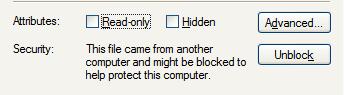
You know how when you download a file through Internet Explorer, if you look at the file properties, it has the message "This file came from another computer and might be blocked to help protect this computer." like this: Does anyone have a way to set or clear this attribute using AutoIt? TIA!
-
That would probably work if the users weren't in the Administrators group, but when they are, it just always says Yes. The problem is knowing if it's being run with Elevated Administrator level privledges (not just Administrator level) BEFORE the rights are elevated by the #RequireAdmin directive. I suspect this is not possible, and I'll just have to put a warning message up first. Thanks though!
-
I have a script which performs several installations. It has the #RequireAdmin directive, and works fine under Vista. However, the other day a tech ran the compiled script by right clicking the EXE and selecting "Run as Administrator", and for whatever reason, the script just hung. As the script works fine if that isn't done, what I'd like to do is to determine if the script was run by right clicking on the EXE and selecting Run as Administrator so that I can put up an error message and exit the script if it's done again. I tried looking at the system variables, but they don't change. Any other suggestions for how to detect this situation? Thanks. Jerry